YahELite - Login and Connect to Chat
Note to the experienced users
Beginning with version 328, YahELite offers users the ability to choose between two levels of visual complexity, the basic level and the expert level.
YahELite contains all the features no matter which level you choose, the only difference will be what you are seeing on the screen.
Compare the differences on the >>Basic v.s. Expert<< page or learn how to change levels on the >>CHANGING LEVELS << page.
Beginning with version 328, YahELite offers users the ability to choose between two levels of visual complexity, the basic level and the expert level.
YahELite contains all the features no matter which level you choose, the only difference will be what you are seeing on the screen.
Compare the differences on the >>Basic v.s. Expert<< page or learn how to change levels on the >>CHANGING LEVELS << page.
YahELite is designed to run 'right out of the box' which means for most chatters all that needs to be done is to enter their name and password and click "Connect" to begin chatting. Tweaking the options is an enjoyable pastime for some, while other chatters allow all options to stay at their original default settings. No matter which type of chatter you are YahELite will make your chatting experience an enjoyable one.
As you open YahELite, this window will open. You will use it to log in and connect YahELite to Yahoo chat.
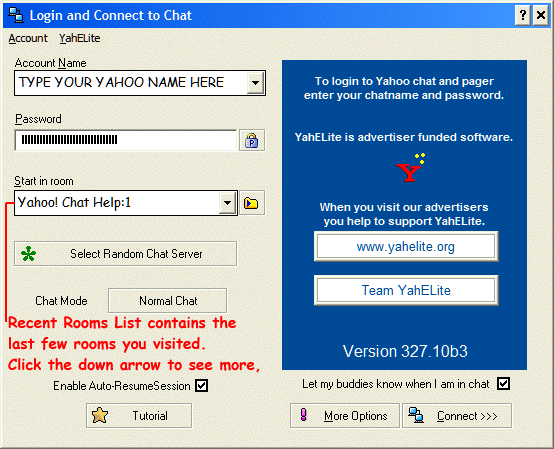
- Let's walk through it.
- To chat on Yahoo you need a Yahoo account. If you do not have a Yahoo account, you will need to go to Yahoo and Sign Up Now to get a Yahoo Account and password.
- Enter your Account name.
If this is the first time using YahELite, the Account Name box at the top left will be empty. Type in your Yahoo ID name.
*** If you have used YahELite in the past, names will be available to choose from by clicking the down arrow on the right and selecting from the list. - Enter your password.
YahELite can remember your password so that you do not need to type it in every time you start chat. If you want YahELite to remember your password, click the button with the lock on it. - Start in room
If you have used YahELite before, the room list will be populated with the last 32 rooms you have visited.
The first time you use YahELite it will offer "Yahoo! Chat Help" as the room you will enter.
To the right of the room name there is a button with a folder on it. Use that button to open a window to browse the list of Yahoo's rooms and select the room you wish to enter.
You can now click "Connect to chat" and YahELite will log you in. - Yahoo requires you to prove you are not a bot when joining a room. As you enter a room, YahELite will display the CAPTCHA Test that Yahoo requires you to answer. The CAPTCHA window will close if you answer it correctly, or you will be asked to try again. More information including screen shots is available on the CAPTCHA Tutorial page.
- Perhaps you have noticed there are a few buttons and menu items that have not been discussed.
- Select Random Chat Server
YahELite allows you to select the server you use to chat. If the server you have been using seems slow or unresponsive, click this button to randomly select a different server - Chat Mode
At the bottom of the left side of the window, the chat mode is displayed. Change chat mode by clicking the "Change Chat Mode" button. Clicking the button will also display text just below the Chat Mode Button which gives information about each mode.- Pager Mode: allows instant messaging without entering chat.
- Chat and pager Mode: Lets you leave chat but remain on pager.
- Normal Mode: Full chat and buddylist.
- Enable Auto_Resume Session
If booters are active and are knocking you out of chat you will want to have a checkmark in this box to let YahELite bring you back into chat. - Tutorial
Clicking the Tutorial Button will open a small window offering tips on getting help and in case you need more indepth help there is a button there to open a tutorial page in your browser. - More Options
The "More Options" button will open the panel on the right to allow you to change your log in preferences.
- Delete account name from list deletes the name visible in the "Account Name" field. It will not delete it from your yahoo account.
- If you have logged in under a name, the next time you log in, the Account Aliases affiliated with that name will be dispayed when the Show Account Aliases button is used.
- If you have chosen to save your password and if the "Auto Connect" box is checked, the next time you log in, YahELite will log you in and take you to the last room you were in as the program loads.
- A checkmark in the "Erase personal info at exit" will have YahELite erase all personal information. Chatters using public terminals are encouraged to use this option as it will safeguard their account. Chatters at home wishing a high level of privacy might also find this useful as it essentially uninstalls YahELite by emptying YahELite's data files. (The YahELite program will remain as will other files you might have saved while chatting such as downloaded files, saved transcripts, etc.)
- "Clear recent room list at exit" Will delete the list of rooms you have been in, while maintaining other personal information.
- "Let my Buddies Know When I am in Chat will set your status to "Available" as you log in if there is a check, take the check out to be logged in as invisible. A status of invisible will allow people to see you in the chatroom, but notification will not be sent to your friends to let them know you have logged in.
- Chat Server Yahoo has lots of servers to choose from. From time to time some servers offer advantages that others don't.
In mid-February 2009 many of the boot programs that were being used in Yahoo were not effective if you logged in using the server cs130.msg.ac4.yahoo.com and set your port to 80.
Yahoo has since patched all their servers so that server/protocol combinatin no longer offers any advantages over other servers. Check the Forum for current server/port combinations which may have interesting effects. - Port: This is the port number of the Yahoo server you will be connecting to. Sometimes firewalls will block access to the port you have choosen, so choose another if you are having trouble.
- Firewall and Proxy settings: Click this to configure your firewall and proxy settings.
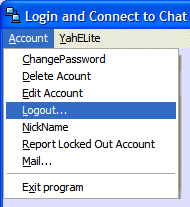
- The Chat Connect Menu
- The options under "Account" will connect you to various Yahoo services.
- Logout differs from the Exit program option in that Logout will log you out of Yahoo by taking you to a Yahoo page to log out. This is provided as a service to chatters using a public terminal and want to make sure that all their yahoo cookies are erased after using other yahoo services in addition to chatting.
- Exit program will do just what it says. It will exit you from YahELite. You can also exit by clicking the "X" in the upper right corner.
-

- The options under "YahELite" are all specific to YahELite and are so straight forward that users are able to understand them without explanation.
In the menu on the top, there are two options: Account and YahELite.